
How to Convert a Twitter Video to GIF (Quick & Free)
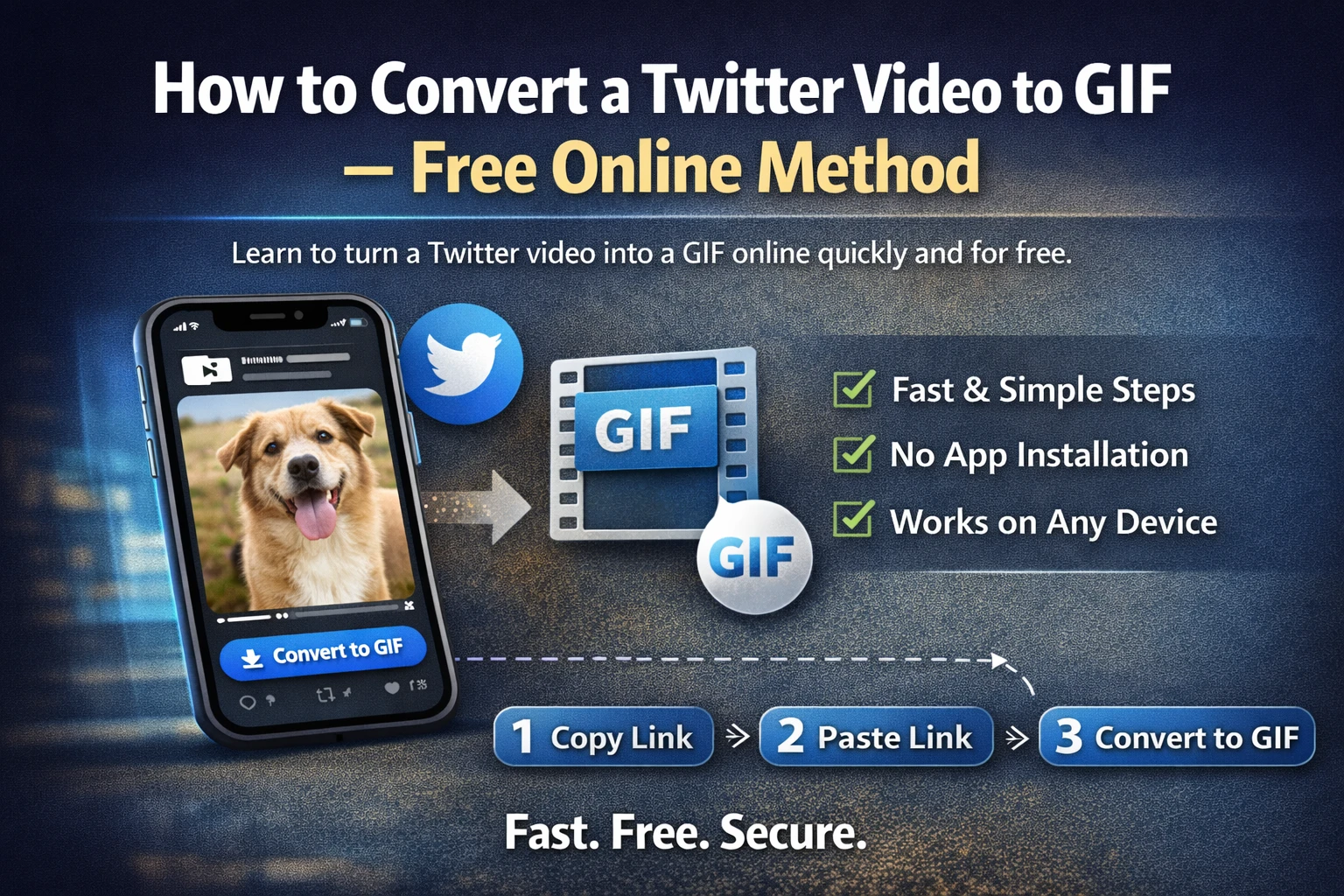
You’ve probably been there. There’s a video on X that’s so perfectly loopable — a funny moment, a slick skill, a clip that just works better as a GIF — and you want it in that format. Not as a video file sitting in your downloads. As an actual GIF you can drop into a chat, a presentation, or a meme.
The problem is X won’t let you do this natively. There’s no export button, no “save as GIF” option, nothing. So here’s how you actually do it.
The Quickest Way to Do It
The whole process has two stages:
- Download the video from X first
- Convert that video file into a GIF
Neither step is complicated. Both are free. You don’t need to install anything.
Step 1 — Download the Video from X
Before you can convert anything, you need the actual video file on your device. X doesn’t give you a way to save videos, so you’ll need an external tool for this part.
Go to TwitterGIFDownloader.net — it’s a free online downloader that works in any browser, on any device. Here’s what to do:
Find the tweet with the video you want. Open it in the X app or on x.com.
Copy the tweet link. On mobile, tap the Share icon and hit “Copy link.” On desktop, just grab the URL from your browser’s address bar.
Paste it into the downloader. Go to TwitterGIFDownloader.net, paste the link into the input box, and tap Get Media.
Choose your quality and download. Pick HD if you want a sharp GIF — lower resolution will look blurry once converted. The file saves to your device as an MP4.
That’s the first part done.
Step 2 — Convert the MP4 to a GIF
Now you have the video file. Time to turn it into a GIF.
The best free tool for this is Ezgif.com — it’s been around for years, it’s straightforward, and it doesn’t require an account.
Here’s how:
Go to Ezgif.com in your browser and click “Video to GIF” in the top menu.
Upload your MP4. Click “Choose file,” select the video you just downloaded, and hit “Upload video.”
Trim it down. This is important — GIFs work best when they’re short, ideally under 6 seconds. In the “Start time” and “End time” fields, enter the exact portion of the video you want. A 30-second video converted entirely to GIF will be a massive file and look terrible. Pick the 3–4 second moment that actually matters.
Set the size and frame rate. For most uses, 480px width and 10–15 fps hits the right balance between quality and file size. If it’s going into a presentation or document, go with 600px. If it’s just for chatting, 360px is fine.
Click “Convert to GIF” and wait a few seconds while it processes.
Download your GIF. Once it’s done, a preview appears. If it looks good, hit the download button. Done.
Tips for a Better GIF
A few things that make the difference between a good GIF and a mediocre one:
Keep it short. The sweet spot is 2–5 seconds. Longer than that and the file gets huge, it loads slowly, and the loop feels awkward. If you need a longer moment, consider just keeping it as an MP4 — most platforms play those automatically now anyway.
Download in HD first. Low-resolution source videos make blurry GIFs. Always download the highest quality available from the Twitter GIF downloader before converting — you can always compress later but you can’t add detail that wasn’t there.
Watch the file size. A GIF over 5MB will get rejected by most platforms and will lag in chat apps. Ezgif shows you the file size before you download. If it’s too big, go back and reduce the width or lower the frame rate slightly.
Check the loop point. Play the preview a few times and watch where it loops. A jarring cut kills the effect. Try to start and end on a frame where the motion is natural — a moment of stillness, or a point where the action resets naturally.
Where You Can Use Your GIF
Once you’ve got the file, here’s where it works well:
WhatsApp and Telegram — both support GIFs natively and will auto-play them in chat. Keep the file under 2MB for smooth sending.
Discord — handles GIFs well. Files up to 8MB work fine for most servers.
Slack — supports GIFs in messages, great for reaction clips in work chats.
Google Slides and PowerPoint — yes, GIFs animate in both. Insert like a normal image and it plays automatically during the presentation.
Reddit and forums — most support direct GIF uploads now. Some older forums work better with a hosted link from Tenor or Giphy if you want to share it more broadly.
A Note on File Size vs. Quality
This is the thing most people don’t realize about GIFs: they are an old format. GIF was invented in 1987 and has a hard limit of 256 colors per frame. A 5-second clip that looks crisp as an MP4 can look washed out and grainy as a GIF, especially if there’s a lot of color variation or fast movement.
If quality matters more than format, keep the MP4. Most modern platforms — WhatsApp, Telegram, iMessage, Discord, X itself — will autoplay MP4 files silently and looped, so they behave exactly like GIFs without the quality loss.
Only convert to GIF when you specifically need the .gif format — like embedding in an older website, using in certain presentation tools, or sharing somewhere that doesn’t support video.
Frequently Asked Questions
The Short Version
If you just want the quick steps:
- Copy the tweet link from X
- Paste it into TwitterGIFDownloader.net and download the MP4
- Upload the MP4 to Ezgif.com → Video to GIF
- Trim to 3–5 seconds, set width to 480px, convert and download
Total time: under 2 minutes.