
How to Save a Twitter GIF Without Watermark
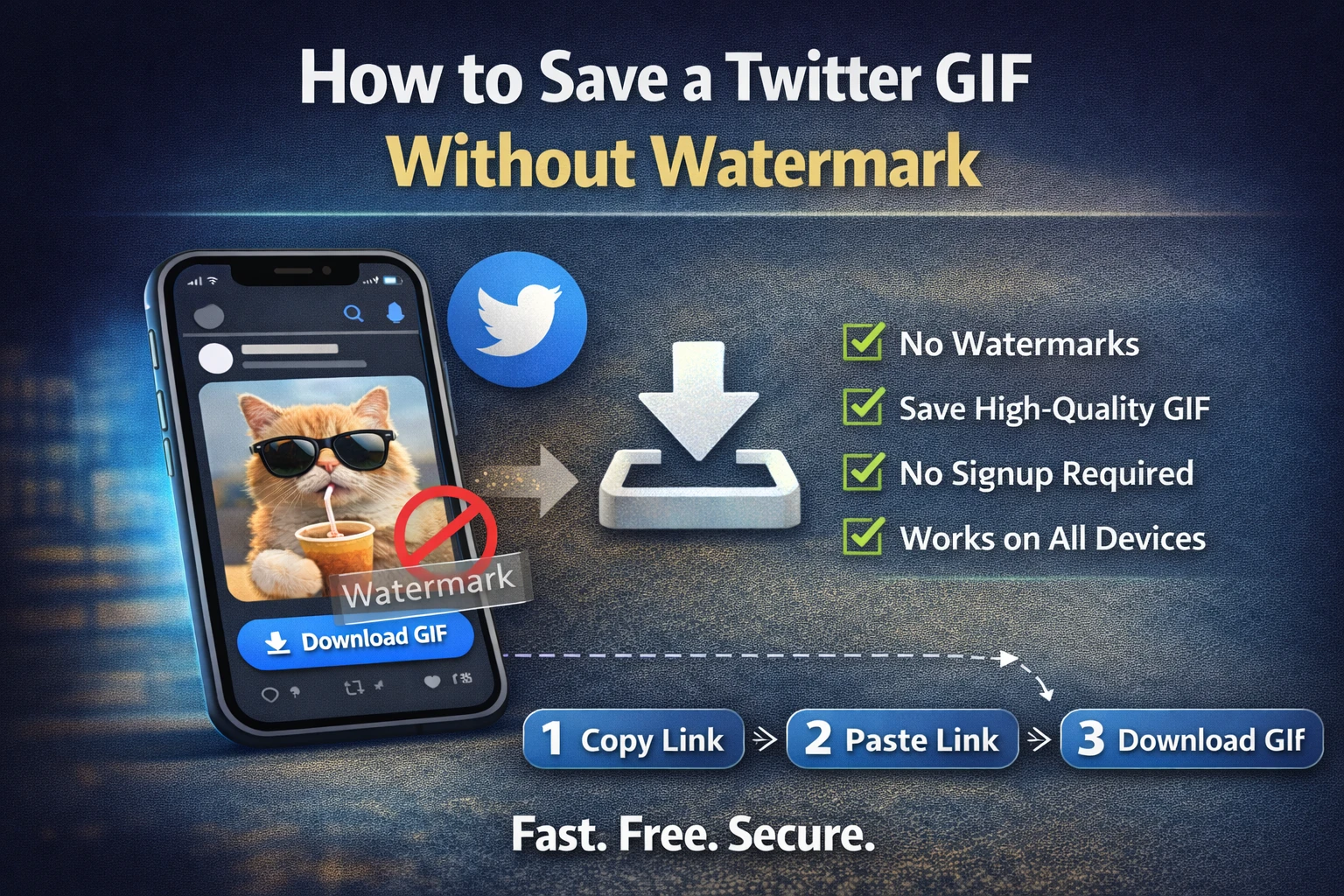
If you’ve tried saving a GIF from Twitter before, you’ve probably run into this: you download the file, open it, and there’s a logo plastered across the corner. Sometimes it’s subtle. Sometimes it covers half the screen. Either way, it’s annoying — especially when you just want a clean file to use however you like.
Here’s the thing: watermarks aren’t something Twitter adds. The platform doesn’t brand its own media files. Watermarks come from the downloader tools themselves — they add their own logo to your file as a way to advertise their service. It’s their media, essentially, riding on top of yours.
The fix is simple: use a tool that doesn’t do this. Not all of them add watermarks, and the ones that don’t work just as well — often better.
Why Some Downloaders Add Watermarks (And Some Don’t)
Most tools that add watermarks are either trying to promote themselves or pushing you toward a paid version where the watermark gets removed. It’s a monetization tactic more than anything else.
The tools that don’t add watermarks — like TwitterGIFDownloader.net — just fetch the original file directly from Twitter’s servers and hand it to you as-is. No processing, no branding, no modifications. What Twitter stores is what you get.
So the watermark issue isn’t really a technical problem. It’s a “which tool are you using” problem.
How to Download a Twitter GIF Without Any Watermark
This takes about a minute. You need the tweet link and nothing else.
Step 1 — Open the tweet on X
Find the tweet with the GIF you want. It needs to be a public tweet — private account content isn’t accessible through any external tool, watermark or not.
Step 2 — Copy the tweet link
On the X app, tap the Share icon at the bottom of the tweet and select “Copy link.” On desktop, copy the URL straight from your browser’s address bar. Either works.
Step 3 — Paste it into the downloader
Go to TwitterGIFDownloader.net and paste the link into the input box. Tap Get Media.
Step 4 — Download your clean file
You’ll see the available quality options — usually HD and SD. Pick whichever suits you and download. The file saves directly to your device with no watermark, no logo, no branding of any kind.
That’s genuinely it. The file you get is the raw media file from Twitter’s servers, completely untouched.
What You’re Actually Downloading
Worth knowing: Twitter doesn’t store GIFs as .gif files. It converts every GIF uploaded to the platform into a short looping MP4 video. This happens automatically when someone posts a GIF — by the time it appears in your feed, it’s already been converted.
So when you download a “GIF” from Twitter, you’re downloading an MP4. This is actually a good thing — MP4 files are sharper, smaller, and compatible with every device and app. The file will loop and play exactly like the GIF did on Twitter.
If you specifically need a .gif file — for a website, a presentation, or a platform that only accepts that format — you can convert the MP4 using Ezgif.com after downloading. Upload the MP4, trim it to the section you want, and export as GIF. Takes about a minute.
Double-Checking Your File Is Clean
Once you’ve downloaded, just open the file and watch it through once. If there’s no logo in any corner and no text overlay anywhere in the clip, you’re good. The file is clean.
If you somehow ended up with a watermark anyway, you’ve likely used a different tool than the one linked above. Go back, use TwitterGIFDownloader.net specifically, and re-download. The result will be clean.
Can You Remove a Watermark That’s Already on a File?
If you already downloaded a file through a tool that added a watermark, removing it properly is genuinely difficult. A watermark that’s been burned into the video frames can’t be cleanly erased — cropping might work if the logo is in a corner and the important content isn’t near the edges, but that changes the aspect ratio and usually looks off.
The better answer is just to re-download using a tool that doesn’t add one in the first place. If you still have the original tweet link, go back to TwitterGIFDownloader.net and grab a fresh, clean copy. Much easier than trying to edit out someone else’s branding.
A Few Things Worth Knowing Before You Download
Only public tweets work. If the account is set to private or protected, no external downloader can access the media. This isn’t a limitation of any specific tool — it’s just how Twitter’s system works.
The tweet needs to still exist. If the original tweet was deleted or the account was suspended, the media file is gone from Twitter’s servers and can’t be recovered through any downloader.
Downloaded content is for personal use. Just because you can download something clean doesn’t mean you can repost it and claim it as your own. The original creator still owns it. Using it for personal viewing, sharing in private chats, or saving for reference is fine — republishing it commercially or without credit is a different story.
Frequently Asked Questions
The Quick Version
Don’t want to read the whole thing? Here’s the short answer:
Most watermarks come from the downloader, not Twitter. Use TwitterGIFDownloader.net — paste the tweet link, hit Get Media, download. The file comes straight from Twitter’s servers with nothing added. Clean every time.